SaySo
A downloadable Accessibility Tool for Windows
SaySo reads your games out loud. Dialogue, menus, item tooltips, subtitles — anything on screen — spoken by a natural voice that runs on your own PC. It works with any Windows game, including emulators, and it never touches the game itself: no mods, no injection, just watching the screen.
What it does
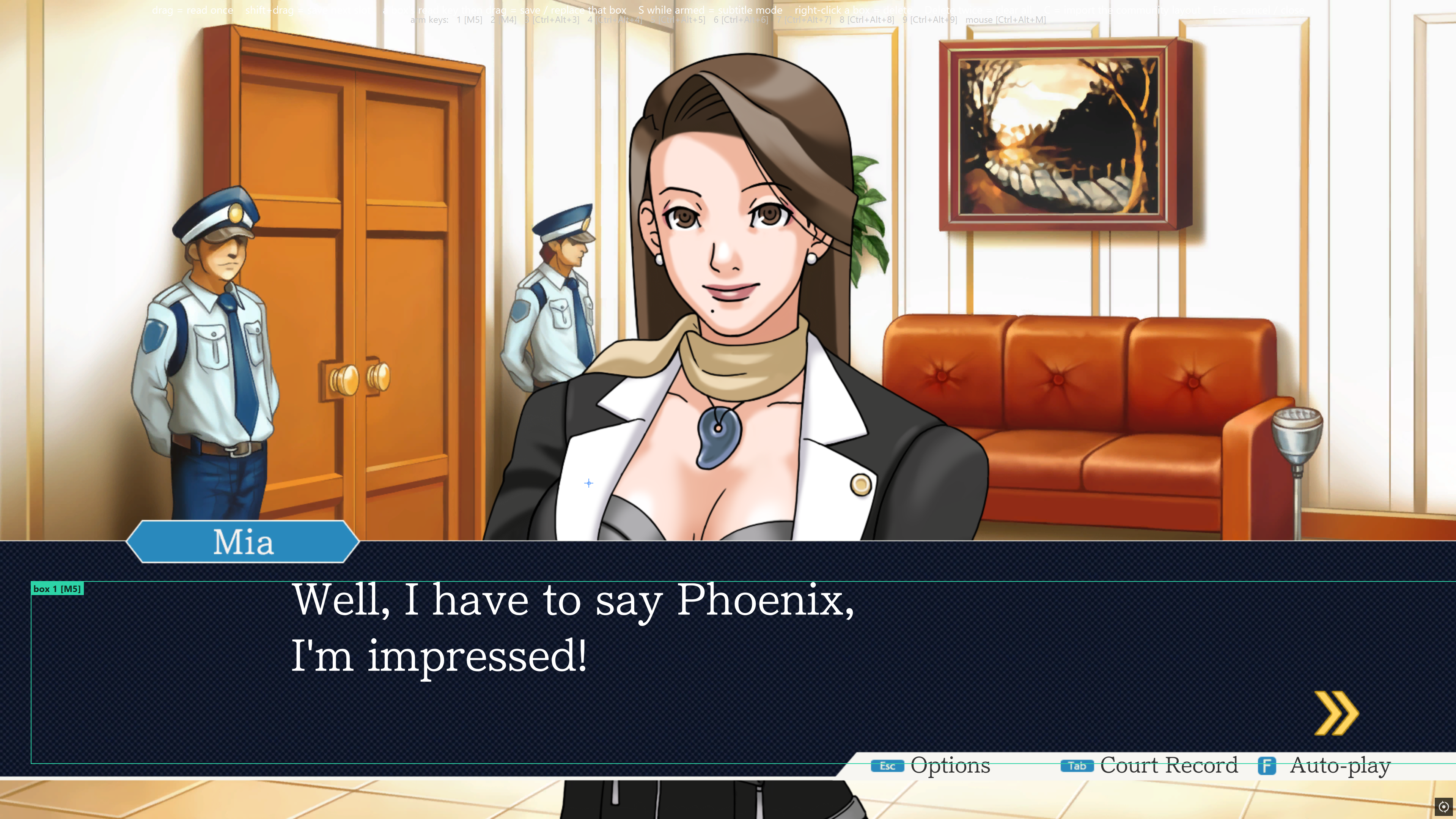
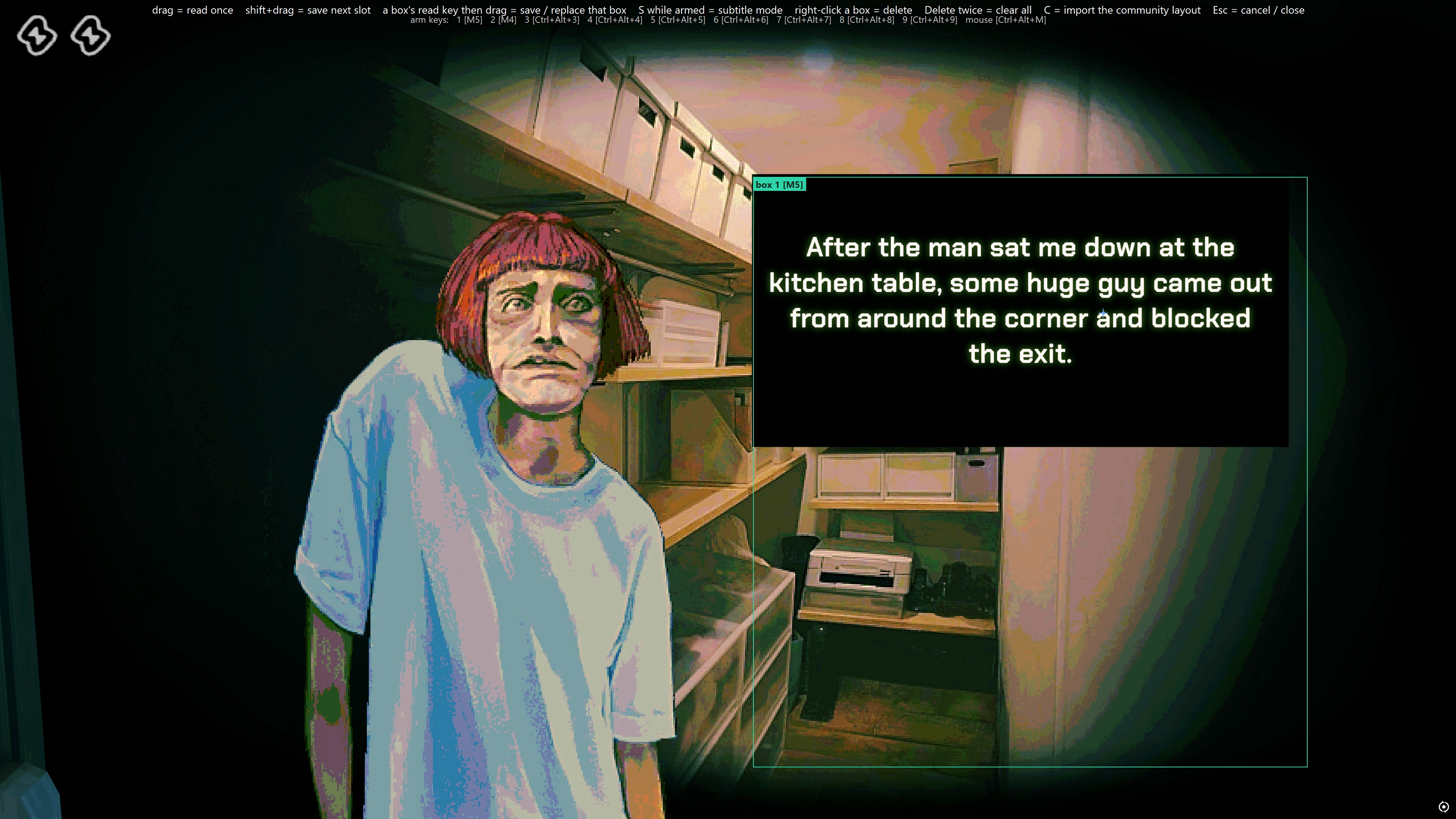
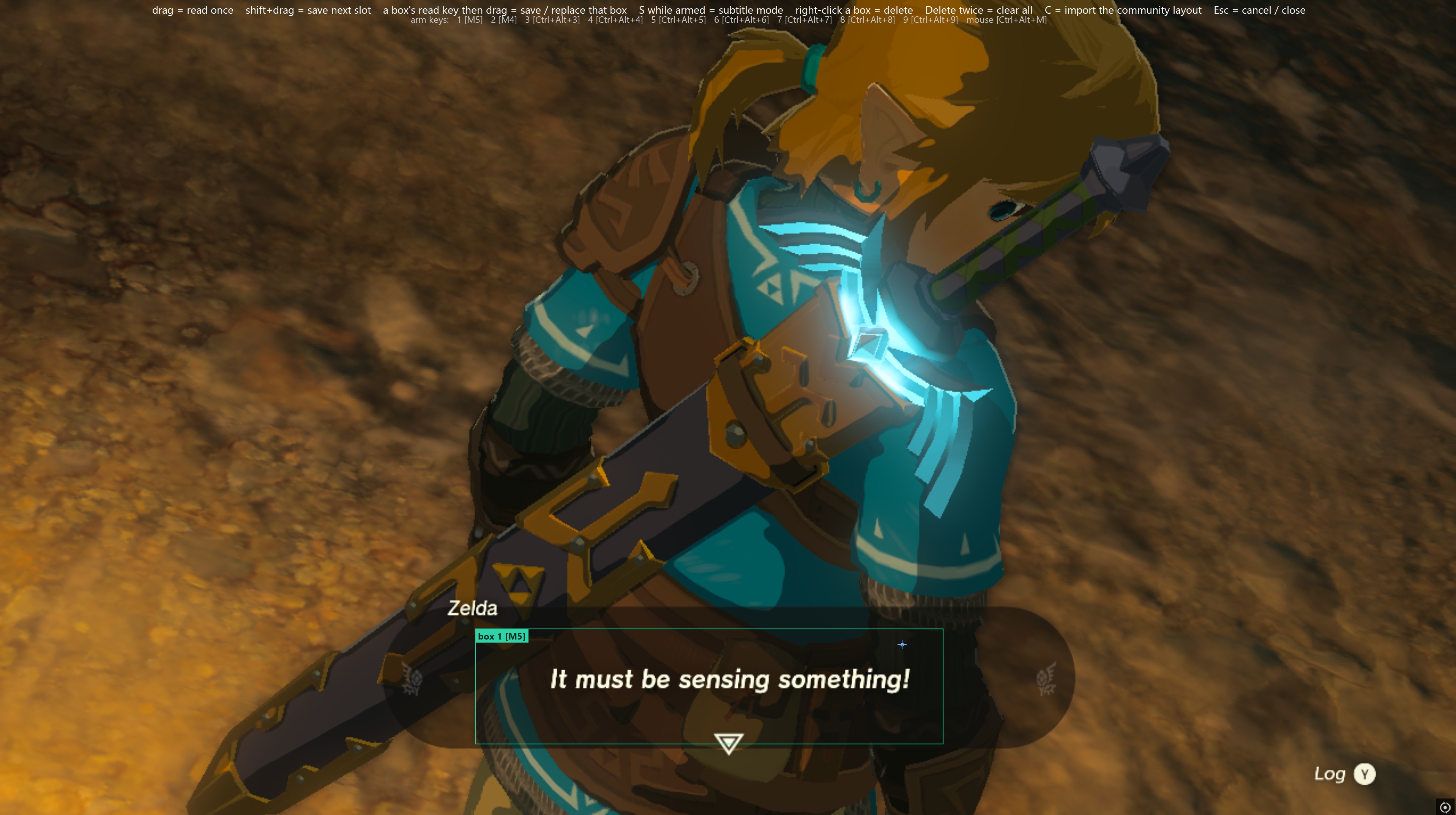
- Auto mode — draw one box around a game's dialogue area, once, and every new line is read as it appears. Typewriter text, burst text, and subtitles are all handled.
- Menus and inventories — an optional AI screen read groups item names with their stats and reads menus in a sensible order (needs your own xAI key; costs a fraction of a cent per press).
- Tooltips — a box that follows your mouse, so hovering an item reads its tooltip wherever it pops up.
- Retro games — built for pixel fonts on Game Boy, DS, and Switch emulators as well as modern PC games.
- Your pronunciations — fix how any character name or word is spoken in Settings.
- About 50 voices, speed control, and rebindable hotkeys including mouse side buttons.
- Profiles — each game remembers its boxes; you can keep several layouts per game and switch between them mid-play.
Built for anyone who finds walls of game text hard — low vision, dyslexia, ADHD, or eyes that are done for the day.
What's free and what isn't: everything runs locally and costs nothing. The only paid feature is AI screen reading, and that's billed by xAI to your own key, never by me.
Privacy: SaySo takes screenshots to read text and keeps everything on your computer. The only things that can ever leave your PC are AI screen reads (only when you press the key, only with your own key) and anonymous box layouts if you opt in under Settings → Community. Full details in the included PRIVACY.md.
Requirements: Windows 10 or 11, 64-bit. No graphics card needed. About 1 GB of disk space.
This is a beta. Tell me which games work and which don't in the comments — that's what decides what I fix next. Everyone who reports a bug gets a Steam key when SaySo launches there.
Download
Install instructions
Which file to download: just SaySo-Setup-1.2.0.exe. The .tar.gz file is source code included for license reasons — you don't need it.
1. Run the installer. Find SaySo-Setup-1.2.0.exe in your Downloads folder and double-click it.
2. Get past the blue warning. Windows will show "Windows protected your PC" because SaySo is a small independent app without a paid signing certificate. Click More info, then Run anyway.
3. Allow the install. Windows will ask for administrator permission. Click Yes.
4. Click through the installer. The defaults are fine. Tick "Start SaySo with Windows" if you want it always ready.
5. Find SaySo. It starts minimized. Look for the green S icon in your system tray — bottom-right of the screen, near the clock. If you don't see it, click the small ^ arrow to show hidden icons. Right-click the icon for Settings or to quit.
6. If SaySo says text recognition is missing: it needs the English (United States) language pack for Windows. Most PCs already have it. If not, SaySo shows a link to the right Settings page — add "English (United States)" and make sure the optional "Basic typing" and "Handwriting" features are included.
Set up your first game (one minute)
- Open your game and get some dialogue on screen. If the game is in exclusive fullscreen, switch it to borderless or windowed just for this step.
- Press Ctrl+Alt+B. A frozen screenshot of your game appears.
- Hold Shift, drag a box around the dialogue text, and let go. You'll hear "saved as box 1."
- Press Esc to close the editor.
- In the game, press Ctrl+Alt+1 to read that box any time — or Ctrl+Alt+A to turn on auto mode so every new line is read as it appears.
SaySo remembers the box for that game from now on.
Default hotkeys
- Ctrl+Alt+1–9 — read box 1–9
- Ctrl+Alt+A — auto mode on/off
- Ctrl+Alt+Shift+1–9 — point auto mode at a box
- Ctrl+Alt+B — box editor (Shift+drag saves, plain drag reads once, right-click deletes)
- Ctrl+Alt+M — read the tooltip under your mouse (set up the mouse box in the editor with M)
- Ctrl+Alt+F — AI screen read (needs your xAI key in Settings → Vision)
- Ctrl+Alt+X — stop talking
- Ctrl+Alt+Q — quit
All of them can be changed in Settings → Hotkeys.
Common problems
- Hotkeys do nothing in a game — the game is running as administrator. Quit SaySo and run it as administrator too (right-click its Start Menu shortcut).
- It reads the wrong area or nothing — press Ctrl+Alt+B, press 1, and redraw box 1.
- Cutscene subtitles — in the editor, arm a box and press S before dragging to make it a subtitle box.
- A name is pronounced wrong — Settings → Speech, add the word and how it should sound.
- The editor opens behind a fullscreen game — alt-tab to it; the screenshot is frozen.
Uninstalling: Windows Settings → Apps → SaySo → Uninstall. Your profiles are kept unless you tick "remove my settings."